
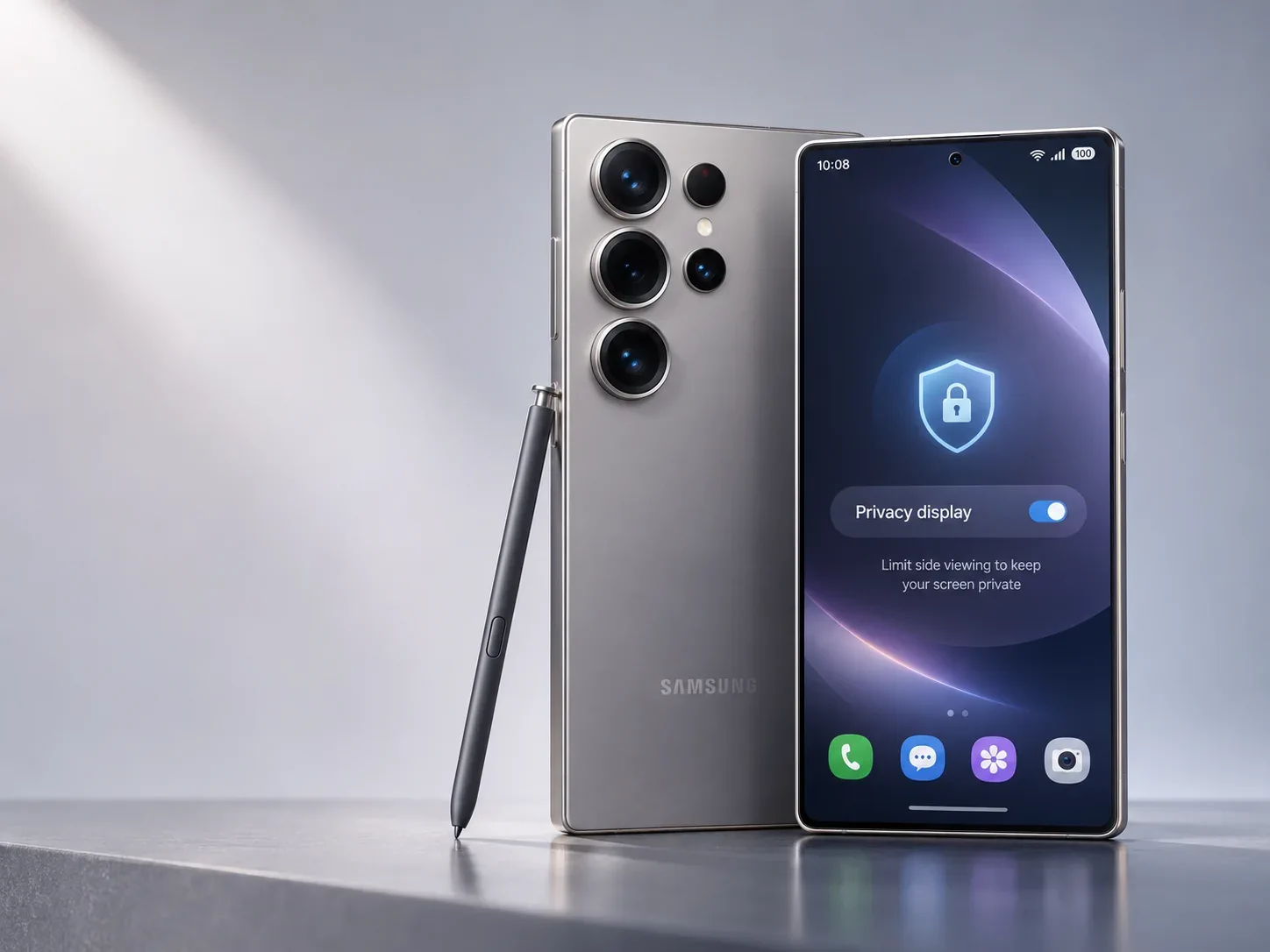

Samsung’s Galaxy S26 Ultra has a privacy feature that conventional screen protectors cannot reproduce in quite the same way: it can narrow the display’s viewing angles on demand, then return to regular viewing when you turn the feature off. That sounds simple, but it changes how you should think about using your phone in public.
Privacy Display is not a second password or a cybersecurity shield. It is a hardware-assisted visibility control that reduces how easily someone beside you can read certain on-screen content. Understanding that distinction is the key to using it well. This PhonesGate guide explains the official controls, everyday trade-offs and scenarios in which the feature is genuinely useful.
Editorial disclosure: This is a research-based guide using Samsung documentation, not a hands-on review. PhonesGate has not measured side-view luminance, observed the feature on a test device or compared optical results in a laboratory. All images accompanying this guide are AI-generated editorial illustrations. They are not photographs of a physical Galaxy S26 Ultra, verified UI screenshots, or evidence of measured Privacy Display performance.
Key takeaway
How Samsung Galaxy S26 Ultra Privacy Display works, how to configure it, its side-angle limitations and when buyers should use it.
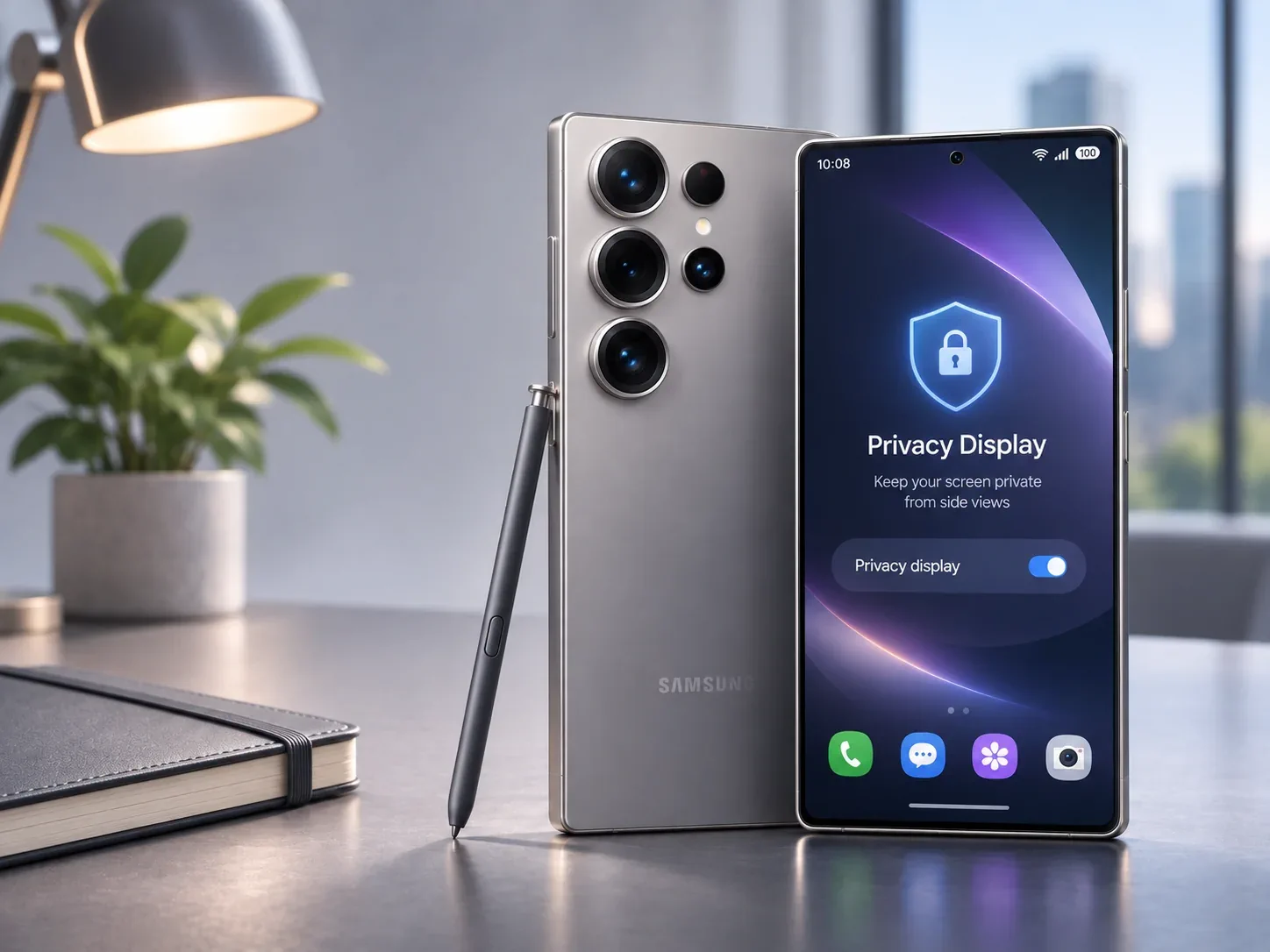
What Samsung’s Privacy Display actually does
The Galaxy S26 Ultra uses Samsung’s integrated Privacy Display, described by the company as a display technology that controls the direction of emitted light. From the intended viewing position, the screen remains usable; viewed from the side, content becomes harder to read. Samsung identifies the underlying approach as Flex Magic Pixel in its US support material. Samsung’s configuration guide explains the feature and its controls.
This is materially different from an adhesive privacy film. A film permanently narrows viewing angles whenever it is fitted; the S26 Ultra can switch its behavior, and it can use different rules for notifications, apps or password fields. That flexibility is the important innovation—not a claim that every bystander will see an entirely black screen.
7 min read
Samsung coverage from PhonesGate. Published Nov 2, 2026.
How to enable it without leaving it on all day
On a Galaxy S26 Ultra, open Settings → Display → Privacy Display, or open the Quick Panel and touch and hold the Privacy Display control. Samsung documents these routes in its UK support guide. Menu labels may differ slightly by locale and software version.
- Enable Privacy Display and confirm it reduces side visibility in your environment.
- Open Conditions for turning on instead of assuming you need permanent protection.
- Choose selected apps, credential entry and/or notification pop-ups based on your needs.
- Try Maximum privacy protection when extra shielding is worthwhile, but check whether readability suffers.
- Test the screen from typical side angles in realistic indoor and outdoor lighting.
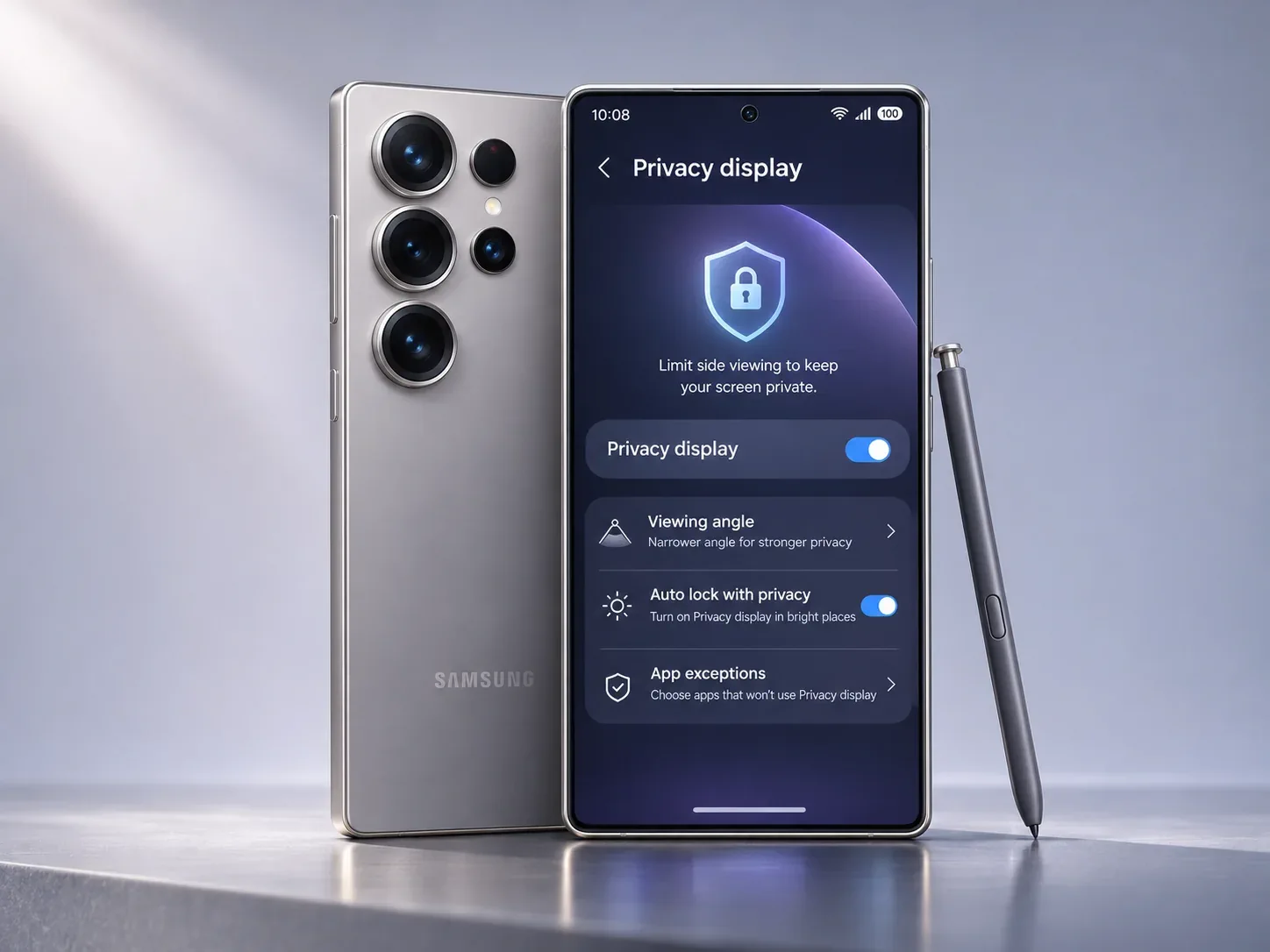
Where Privacy Display offers practical value
Banking, work messages and public transport
A crowded train or a café counter is where the risk is obvious: the person next to you may not need to touch your phone to read a balance, message or private document. Selective activation during supported finance or personal apps can reduce the chance of casual visual disclosure while avoiding an always-on display compromise.
Typing a PIN or unlocking sensitive areas
Samsung supports conditions for PIN, pattern and password entry, including relevant security interfaces. This matters because a six-digit PIN viewed over someone’s shoulder can undermine other safeguards. Activating screen privacy during credential input is a useful additional layer—not a replacement for a strong lock method or biometric protections.
Incoming notifications
Even a locked phone can reveal information in a preview. Samsung supports partial privacy for notification pop-ups, which is a narrower intervention than dimming every app. For users who rely on readable notifications, that targeted behavior may be the most sensible first setting.
What Privacy Display cannot protect you from
Samsung’s own help pages caution that some information may still be visible depending on the angle, ambient light and viewing conditions. It is wrong to describe this feature as perfectly private from every direction. Someone close to your direct line of sight may still read the screen. A phone lying flat on a desk can also present different risks from one held vertically.
The feature also does nothing to stop malicious apps, compromised accounts, phishing, screenshots captured by software, stolen cloud sessions or data sent to an untrusted recipient. Those problems require separate defenses such as updates, strong authentication, trustworthy apps and careful sharing habits. Privacy Display targets physical observation, not the full threat model.
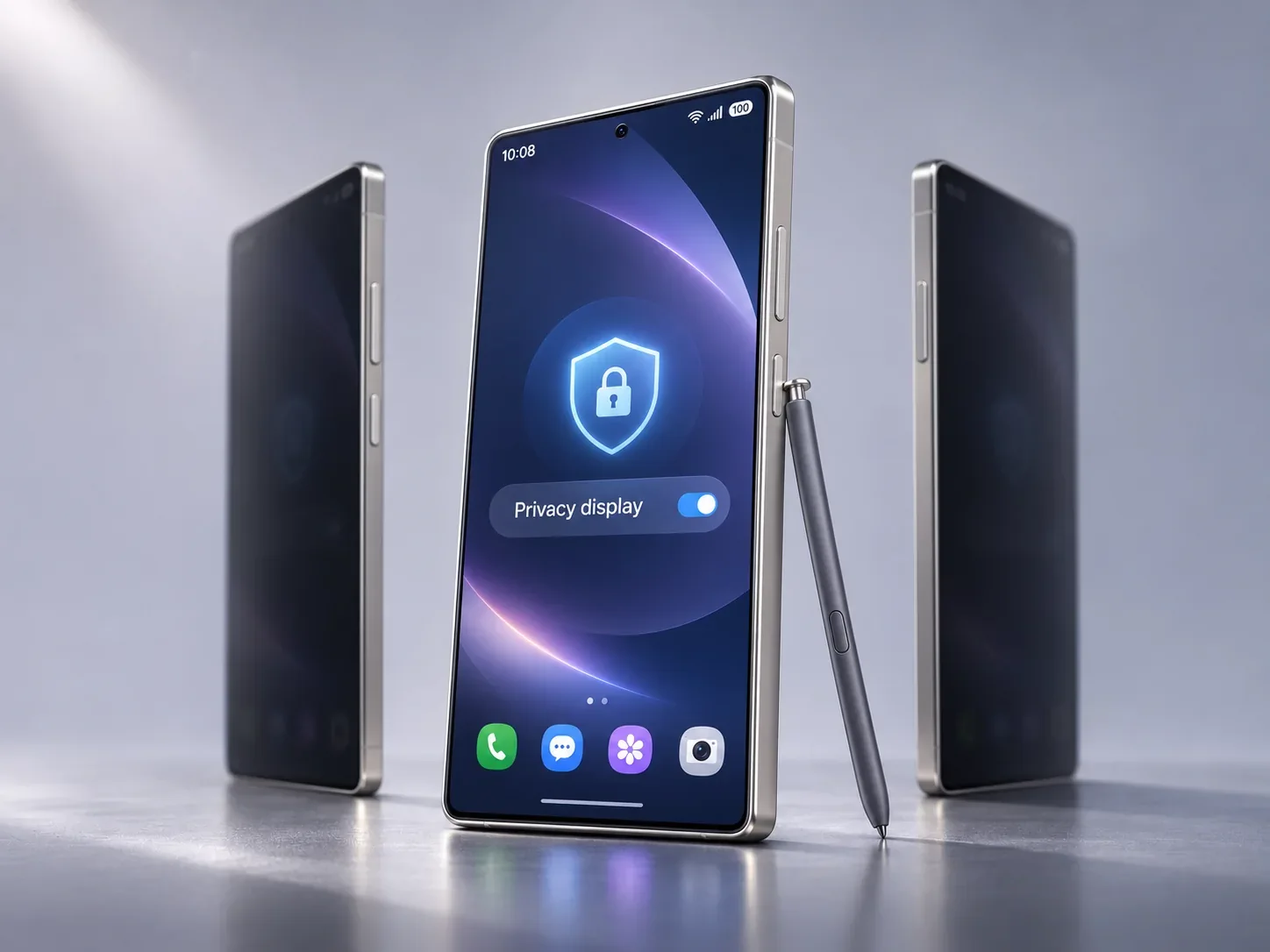
Trade-offs: clarity, brightness and comfort
Samsung says that Maximum privacy protection may slightly blur the image or alter colors. Its US documentation also warns that the privacy setting can make the screen appear darker outdoors. For photo editing, accurate color assessment or sharing the screen with another person, turning the feature off can be the better choice. These are manufacturer-described limitations; we have not independently quantified their severity.
Buyers should not treat a single brightness specification as the answer. Viewing-angle behavior, reflected light and individual eyesight change the outcome. A controlled comparison would need luminance and color measurements at several angles and in both privacy modes—measurements that this article does not claim to provide.
Should you buy the Galaxy S26 Ultra for Privacy Display?
It can be a meaningful differentiator if your work involves frequent travel, sensitive notifications or regular screen use in shared spaces. Its selective software controls are more flexible than a stick-on filter, and the ability to switch modes matters for normal viewing.
It should not decide a flagship purchase by itself if you mostly use your phone at home or if you need dependable visibility from multiple angles while sharing photos and videos. Price, battery life, camera performance, ergonomics and long-term software support remain significant. For camera configuration rather than display privacy, see PhonesGate’s separate Galaxy S26 Ultra camera settings guide. You can also browse the PhonesGate device catalog to evaluate alternatives.
How to test the feature in a store before deciding
- Ask staff to switch Privacy Display on and off and observe the same text from 0°, moderate side angles and near-profile angles.
- Try medium and high brightness, both indoors and near bright window light.
- Open a notification or settings page to understand how partial screening behaves.
- Check whether fine print and photos remain comfortable for your eyes in Maximum mode.
- Verify the exact regional model and software version before drawing conclusions.
This takes only a few minutes and produces more useful purchasing information than promotional photographs alone. A screen designed to protect against nearby observers still needs to work well for its owner.
Illustration disclosure and real-device photo references
For editorial reference, real Galaxy S26 Ultra photographs—including Privacy Display ON and comparison views—are available on Wikimedia Commons. Photographs by Kyu3a are offered under CC BY-SA 4.0, subject to attribution and share-alike conditions. Those real photographs are linked for reference but are not copied into this import package. The images in this article are labeled AI-generated editorial illustrations, including their simulated screen interfaces.
Bottom line
The Galaxy S26 Ultra’s Privacy Display is an unusually practical feature because it turns visual privacy into a selectable setting rather than a permanent accessory. Its best uses are selective—password entry, certain personal apps and notification previews. The limitation is equally important: viewing-angle control lowers the chance of casual shoulder-surfing; it does not make the screen invisible or secure the rest of the phone. Configure it around your actual risks, then test how comfortable the result is for you.
Sources and editorial methodology
- Samsung US — Use Privacy display on your Galaxy S26 Ultra (primary instructions).
- Samsung UK — How to use Privacy Display (limits and configurations).
- Samsung Global Newsroom — Galaxy S26 series announcement (product background).
- Wikimedia Commons — Galaxy S26 Ultra photographs (real-image reference and licensing).